FastScripts System Permissions
When you use FastScripts to invoke scripts that in turn perform tasks that read or write user data, control other applications on your Mac, or access network resources, the system may present an alert notifying you of, or asking you to approve the activity.
For example, if a script is run with FastScripts that depends upon macOS’s accessibility technologies, you may see an error from the system stating that FastScripts does not have the required permissions:
System Events got an error: FastScripts is not allowed to send keystrokes.
The first time you run such a script, the system is supposed to prompt you to allow or deny the access. You should see an alert like this:
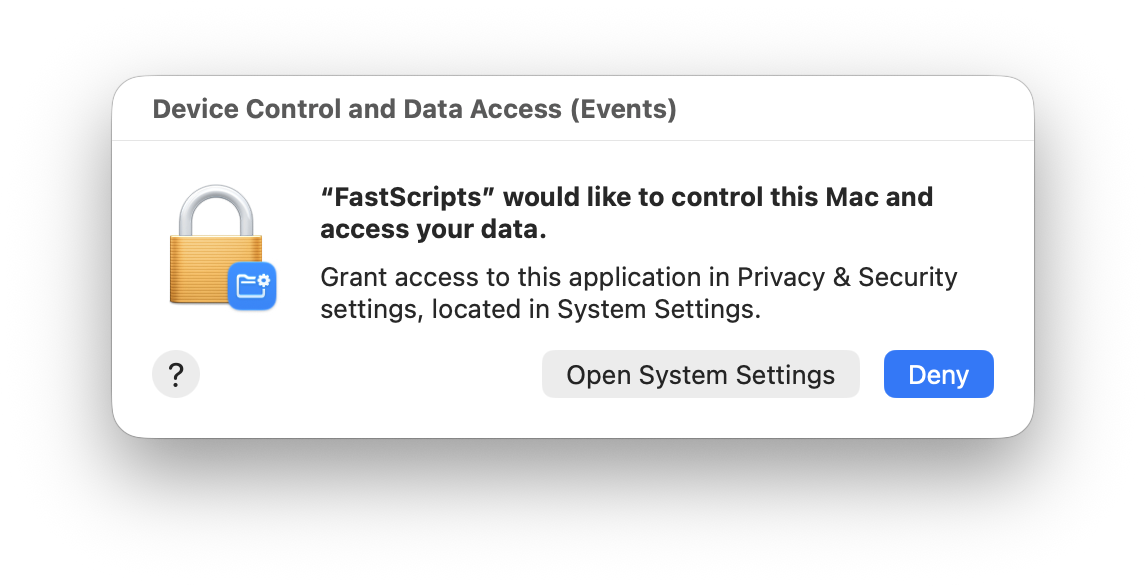
Click the “System Preferences” button to go to the pertinent section of Security & Privacy preferences:
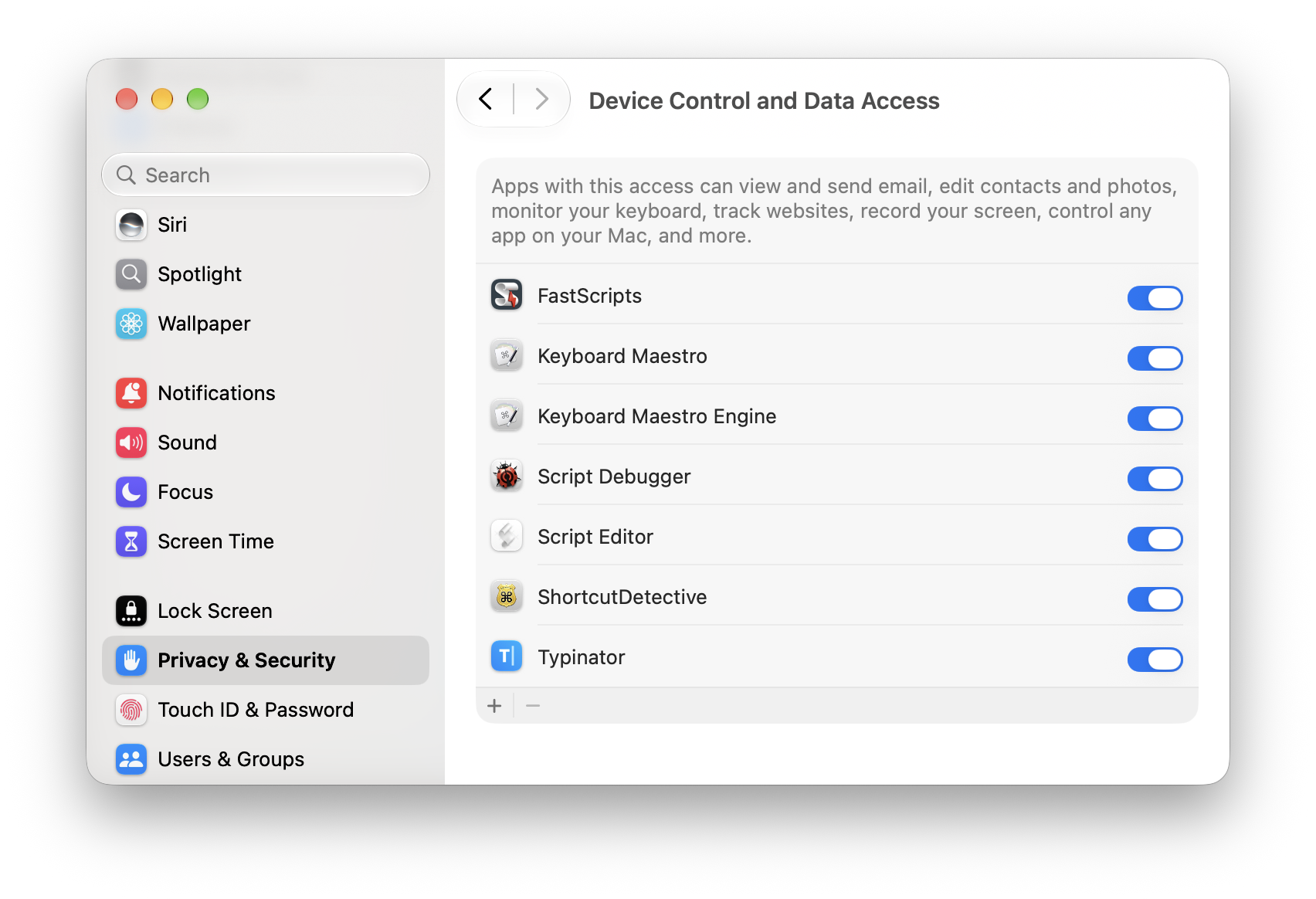
Click the Lock Icon in the lower left corner of the window, and check the box next to FastScripts in the list.
Resetting Permissions
If for some reason this is not working, you may need to reset the system’s database of permissions privileges for FastScripts, or possibly for the whole system. In macOS 10.15 or later, you can focus the reset on just FastScripts, by running a command line such as this from the Terminal:
tccutil reset Accessibility com.red-sweater.fastscripts3
If you want to clear all system permissions for FastScripts, use this instead:
tccutil reset All com.red-sweater.fastscripts3
Once you have configured the system to give FastScripts the necessary Accessibility privileges, you should be able to synthesize keystrokes and perform other automation tasks using Accessibility and AppleScript.
Attributed Permissions Responsibility
Some system alerts can be confusing because they attribute actions to FastScripts which no longer seem connected to the app. For example, if you run a script that opens a Terminal window, any future activity initiated inside that window will be attributed to FastScripts. This can lead to suspicious-seeming alerts that might be rooted in something as simple as invoking ls from the Terminal. In this example the system claims FastScripts is trying to “control this Mac and access your data”.
The reason for this is a notion in macOS of some processes having a “responsible process” for which activities are credited or blamed. For example, after seeing such an alert on your Mac, you can try running the following command in the Finder:
log show -l 1h --predicate 'eventMessage MATCHES ".*AUTHREQ_ATTRIBUTION.*FastScripts.*"'
This queries the system log for any messages in the last hour that contain text that the system logs when reporting on a process that is responsible for another. In this example, I ran an osascript command from the Terminal:
tccd: [com.apple.TCC:access] AUTHREQ_ATTRIBUTION: msgID=627.951, attribution={responsible={TCCDProcess: identifier=com.red-sweater.fastscripts3, pid=22888, auid=501, euid=501, responsible_path=/Users/daniel/Applications/FastScripts/FastScripts.app/Contents/MacOS/FastScripts, binary_path=/usr/bin/osascript}, accessing={TCCDProcess: identifier=com.apple.osascript, pid=22888, auid=501, euid=501, binary_path=/usr/bin/osascript}
You can see that the responsible_path is FastScripts, so any permissions alert arising from this command will be attributed to it.